
Set up AMP X GUITAR on Android
Plug in your guitar, connect your interface and hear your amp tone through headphones, powered speakers or a PA.
Studio setup
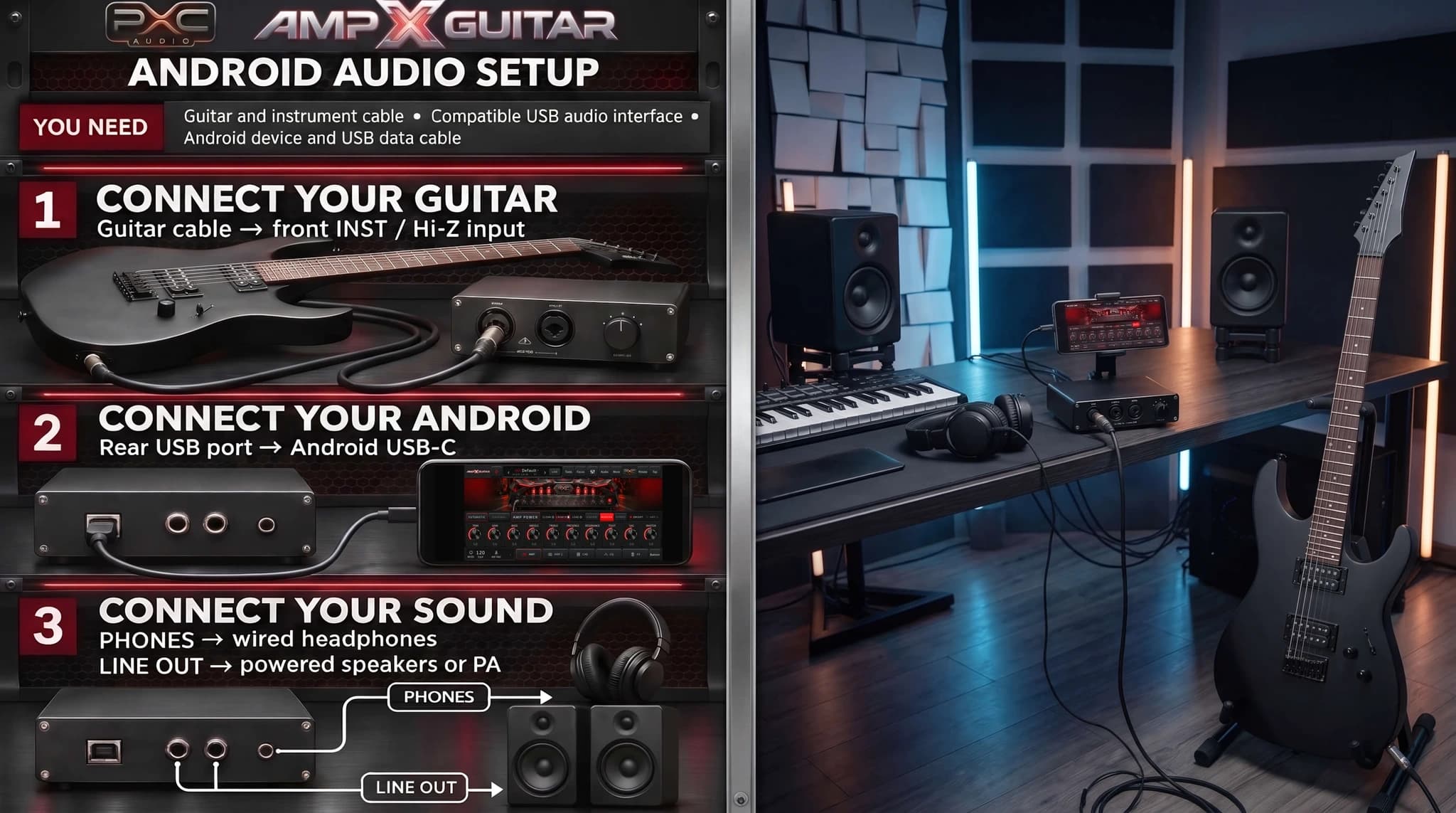
Use an Android device with USB host support, a compatible USB audio interface with an instrument input, and a USB data cable or host adapter. Have your guitar cable and wired headphones or a powered sound system ready.
- Plug your guitar into the interface’s INST or Hi-Z input, usually on the front. Select Instrument mode if the jack has a switch.
- Connect the interface’s USB port to your Android device with the USB data cable. The diagram shows the USB and line connections at the rear. Check the labels on your own interface. If it needs more power, use its power supply or a compatible powered USB hub.
- Turn your listening volume down. Plug wired headphones into PHONES, or connect LINE OUT to powered speakers or line inputs on your PA mixer.
Live show setup
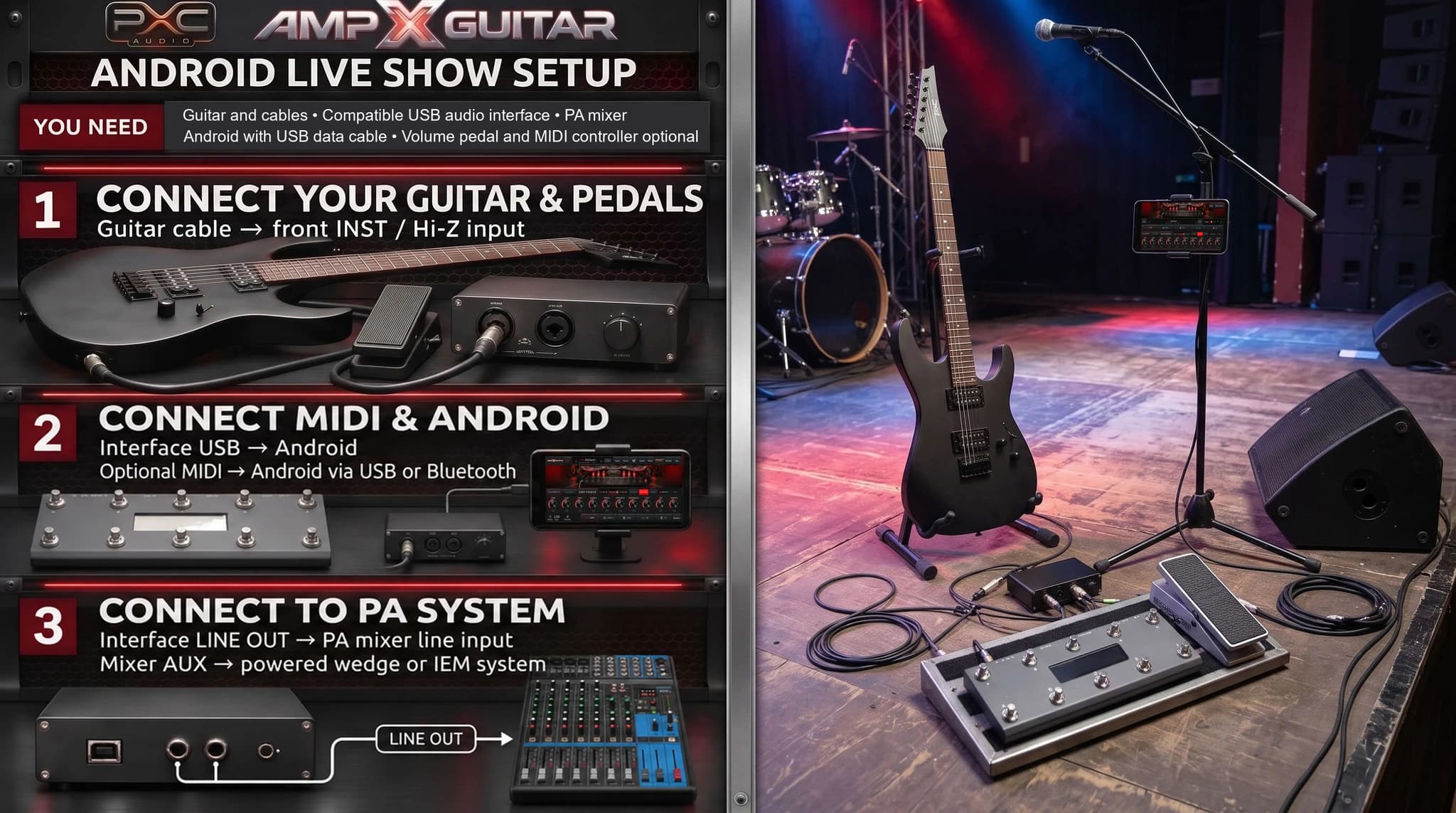
- Plug your guitar into the interface’s INST or Hi-Z input. If you use an analog volume pedal, put it between the guitar and the input.
- Connect the interface to Android with a USB data cable. For a Bluetooth MIDI pedal, open Settings and use BLUETOOTH PEDAL → FIND PEDAL → CONNECT. For a compatible USB MIDI controller, connect it and the interface through a powered USB hub, then choose the controller under MIDI INPUT.
- Send the interface’s LINE OUT to the PA mixer’s line inputs. Use the mixer’s AUX send for a powered wedge or an in-ear monitor system. Start at low volume and check the presets and pedal assignments you’ll use at the show.
Choose input and output in the app
- Open AMP X GUITAR and tap Audio in the top bar. Allow audio input if Android asks.
- Tap USE WIRED / USB AUDIO. Check that Input and Output both show your USB interface. Scroll down if the selectors are below the first screen.
- Under Active input channels, choose the jack your guitar uses, often Channel 1. For stereo, enable the output pair wired to your headphones, powered speakers or PA.
- If playing feels delayed, tap USE LOW LATENCY BUFFER before enabling monitoring. If you hear crackles, choose the next available size under Audio buffer size.
- Turn off Direct Monitor and Loopback on the interface if it has them. Tap CHECK & ENABLE MONITORING, play softly and bring up your listening volume, then tap DONE.
If something sounds wrong
- Clean guitar mixed with the amp
- Turn off hardware Direct Monitor or move the interface’s monitor mix toward USB / Playback.
- Repeating feedback
- Turn guitar monitoring off in AMP X GUITAR and lower your output volume. Turn off the interface’s Loopback or Accompaniment Recording before enabling monitoring again.
- No signal
- Check the USB data cable and power. Confirm the interface is selected for both input and output, then strum and look for the input meter. Check the active input channel if the meter stays still.